Dreame + MOVA Universal— RTI XP Driver
Control your Dreame or MOVA robot vacuum from RTI — full control and live status over the vendor cloud, plus a built-in tap-to-clean floor-plan map with automatic multi-floor support. Choose your brand (Dreame or MOVA) in the driver settings.
About this driver
Puts your Dreame or MOVA robot vacuum on your RTI panels — start, pause, stop, return to dock, and locate, with suction (Quiet / Standard / Strong / Turbo), water and mop levels, cleaning mode (Sweep / Mop / Sweep and Mop), and per-room cleaning. Control runs over the Dreame Home cloud, because Dreame's newer vacuums turn off local network control once they're set up in the app — so the cloud is the full-feature path, with real-time status pushed to your panels over a self-healing connection. The headline feature is a built-in, hosted live floor-plan map: drop a single Web Object on your touchscreen and you get the same map you see in the Dreame app — tap one or more rooms and press Clean, watch the robot and its cleaning trail move in real time, and switch floors on a multi-floor home (the robot shows on whichever floor it's physically on). It's provisioned for you automatically — there's no key to create and your Dreame password is never sent to it — and it runs during the trial and with a license. Beyond the map, everything is exposed as RTI functions and variables: full control, plus settings (volume, child lock, carpet boost, tight mopping, mop-wash level, auto-empty frequency, Do Not Disturb), a maintenance panel with consumable life and lifetime stats, and 19 automation events (cleaning started, finished, paused, returning to dock, charging complete, error, mop washing and drying, auto-emptying, consumable low, and more) so the vacuum can trigger any RTI macro. Bind State, Battery, Suction, Water and Mop Level, Is Cleaning, Is Docked and Error to your panel — every two-state reading is available as both text and an on/off value. New in v1.1: the driver now covers MOVA robot vacuums as well as Dreame. Pick your brand in the settings and everything works the same, since MOVA runs the same cloud platform. One license per RTI XP processor; add an instance per vacuum for multi-robot homes. 120-minute MAC-locked free trial — try before you buy.
What's included
- Works with both Dreame and MOVA robot vacuums — pick your brand in the settings; both run the same cloud platform
- Full control of your Dreame or MOVA robot vacuum — start, pause, stop, dock, locate, suction, water/mop level, cleaning mode, and per-room cleaning
- Built-in hosted live floor-plan map: drop ONE Web Object and tap rooms to clean — the same map you see in the Dreame app
- Watch the robot and its cleaning trail move in real time; multi-floor homes get an automatic floor switcher
- Map is auto-provisioned — no key to create, and your Dreame password is never sent to it
- Real-time status over the Dreame cloud (MQTT push) with a self-healing, isolated connection
- Settings, maintenance & lifetime feedback — volume, child lock, mop-wash, auto-empty, DND, consumable life (% and hours), serial number, and totals
- 19 automation events (cleaning started/finished, docking, charging complete, error, mop washing/drying, auto-emptying, consumable low) trigger any RTI macro
- Every two-state reading exposed as both text and an on/off value — text fields and colour-coded buttons just work
- One license per processor; add an instance per vacuum. 120-minute MAC-locked free trial — try before you buy
Setup guide
Control your Dreame or MOVA robot vacuum from RTI — start, pause, stop, return to dock, suction and mop levels, per-room cleaning — plus live status and a built-in live floor-plan map you can tap to clean.
Control runs over the Dreame cloud. Dreame's newer vacuums turn off local network control once they're set up in the Dreame Home app, so the cloud is the full-feature path.
- An internet connection (control is over the Dreame cloud).
- Your Dreame Home or MOVA Home app account email, password, and the region you chose when you created it.
- Step 1
Add the driver and sign in
Add the driver to your project, open the driver's Settings, and fill in:
Setting What to enter Vacuum Brand Choose Dreame or MOVA, matching the app your vacuum is paired with. Account Email The email address of your Dreame Home or MOVA Home app account. Account Password That account's password. RTI has no hidden-password field, so it shows as text; it's stored only on this processor. Account Region The region you selected when you created the account (United States, Europe, and so on). If it won't connect, double-check this first. Vacuum MAC (optional) Only needed if your account has more than one robot vacuum. Enter the MAC of the one to control; leave blank to use the first vacuum found. License Key Leave blank for the 2-hour trial, or paste your key to activate. One license covers every Dreame Universal instance on this processor. Once it connects, your vacuum's state, battery, and errors populate automatically.
- Step 2
Add the live map (the easy way)
The driver includes a hosted live floor-plan map with tap-to-clean rooms and full controls, so you can drop a single Web Object onto your touchscreen instead of wiring up every button. It's set up for you automatically — there's no key to create, and your Dreame password is never sent to it. The map runs during the trial and with a license.
2a. Find your map address (Map Web URL). During the trial, your map address appears on the processor as the Map Web URL system variable. Find it in XP Diagnostics → System Variables → Dreame Universal → Status → Map Web URL and copy its Current Value:
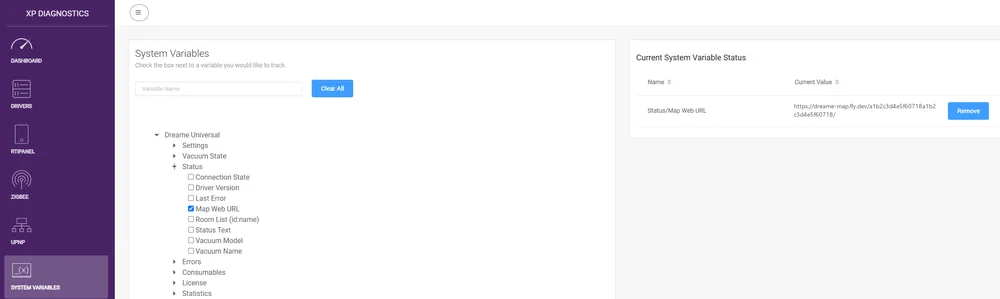
XP Diagnostics → System Variables → Status → Map Web URL After you buy a license, we email your exact map address along with your license key, ready to paste — no lookup needed.
2b. Drop it on your page. Place an Advanced Web Object on your touchscreen page and set its Default URL to your map address:
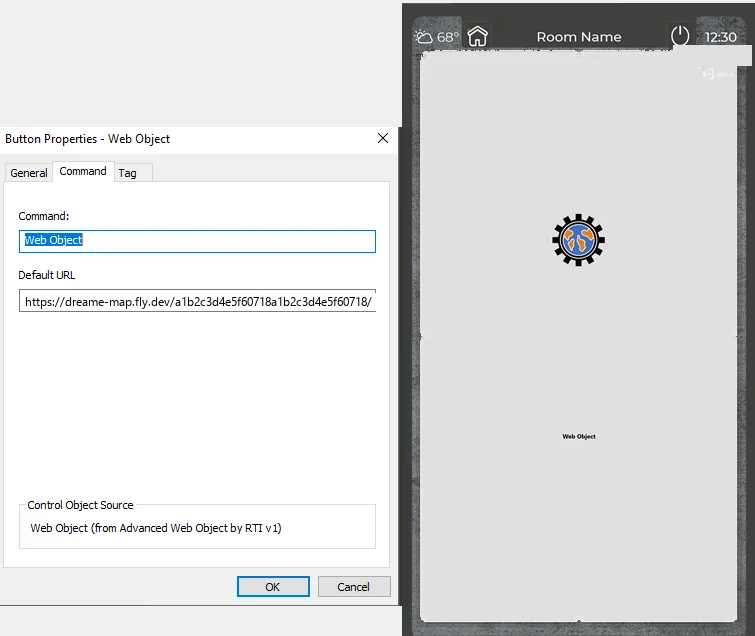
Paste your Map Web URL into the Advanced Web Object's Default URL That's it — your live map loads on the panel. Tap one or more rooms and press Clean.
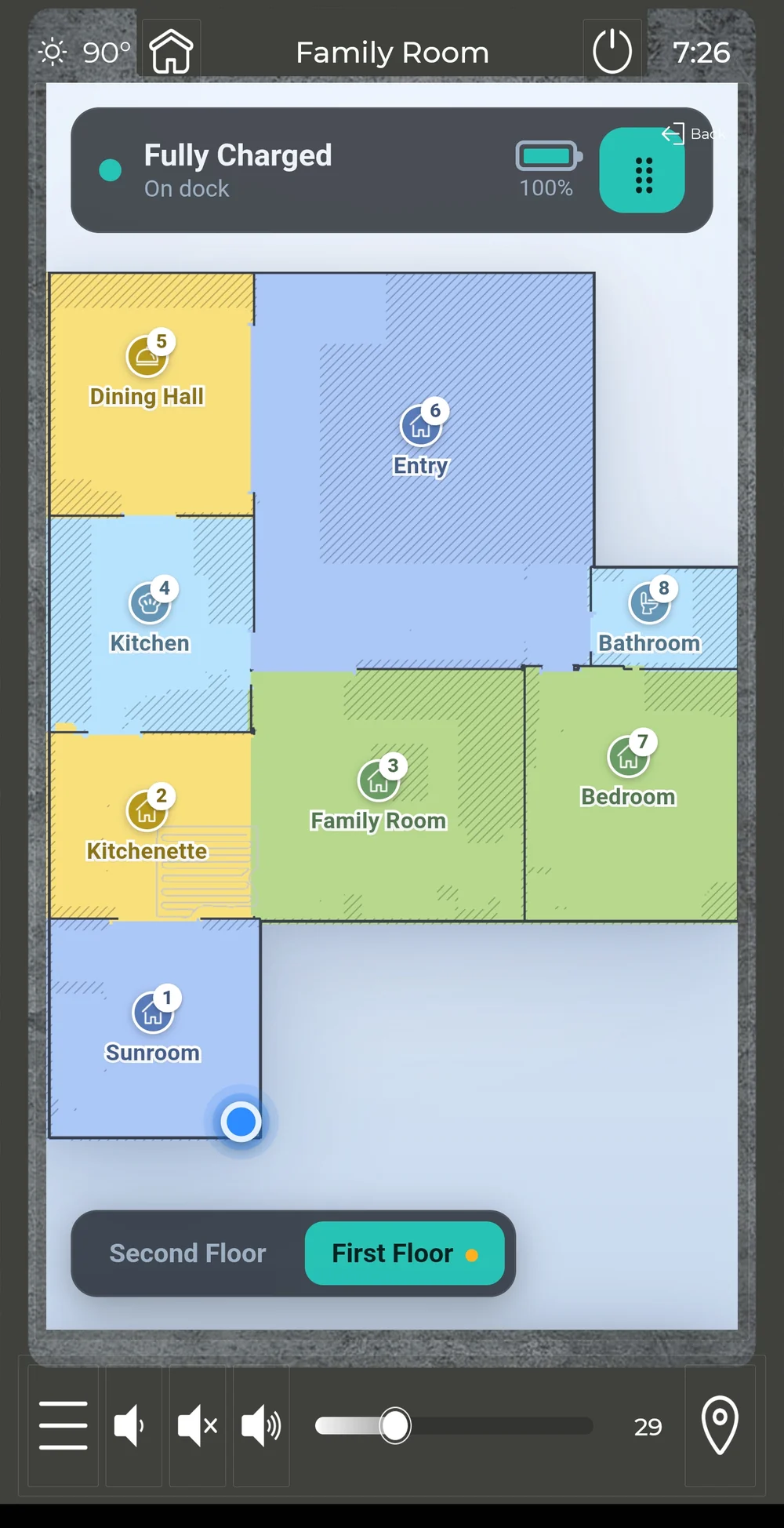
The live map on the panel — tap rooms to clean; the robot and its trail move in real time Multi-floor: if your vacuum maps more than one floor, a floor switcher appears automatically. The robot shows on whichever floor it's physically on, and a Switch robot to this floor button sends it to another floor to clean there.
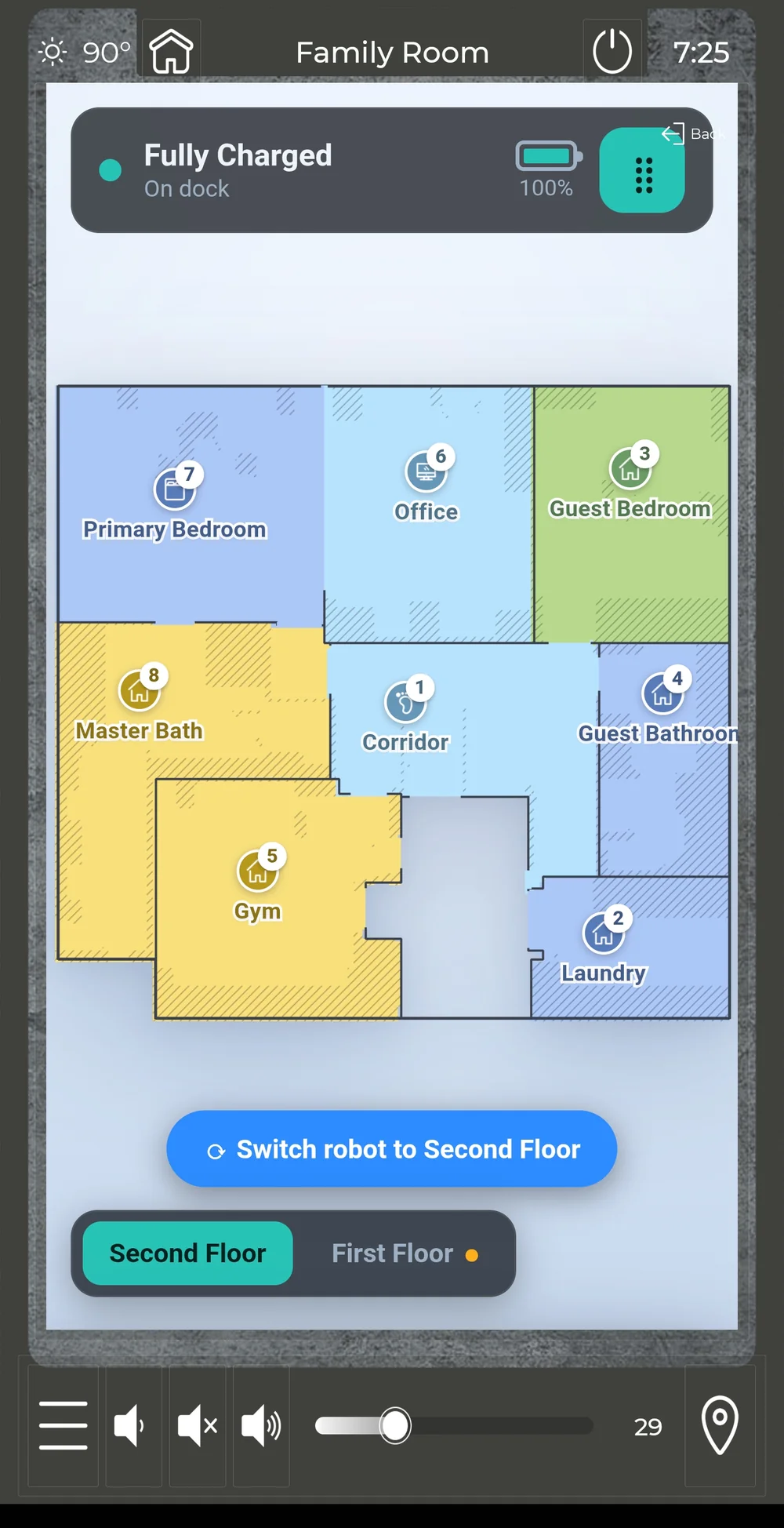
Multi-floor: peek any floor, or switch the robot to the one you want cleaned Want more than tap-to-clean? Tap the control button in the top-right corner of the map to open the full control sheet — everything the Dreame app can do: suction and mop modes, every setting, and live maintenance and lifetime stats.
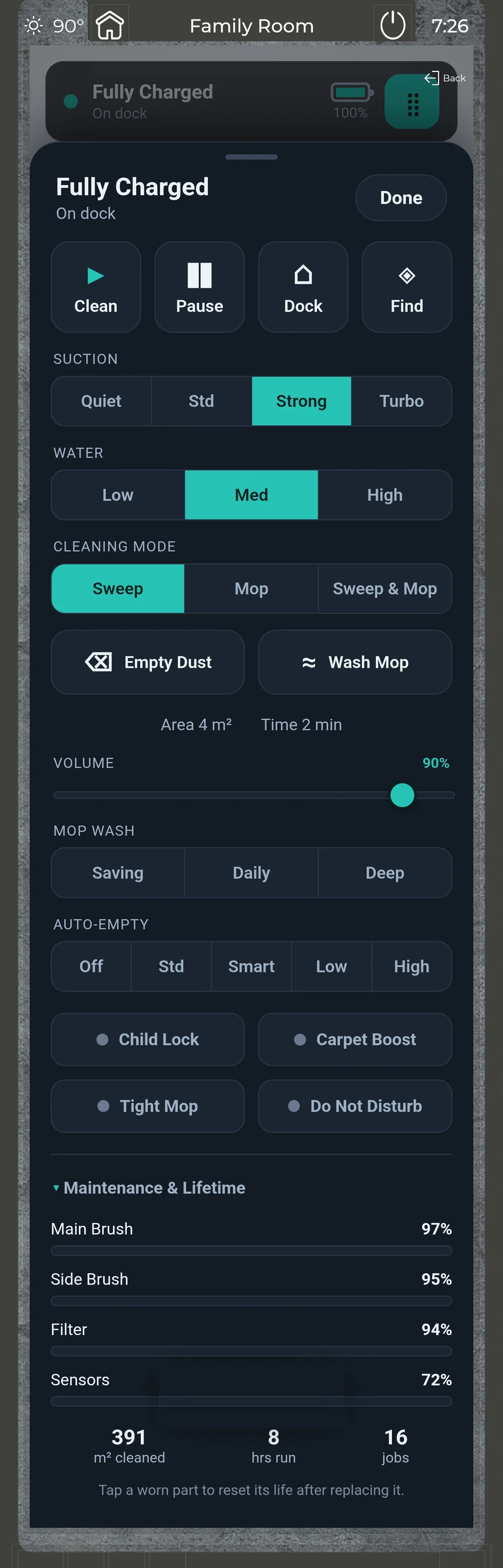
Tap the control button (top-right of the map) for the full control sheet — modes, settings, and live maintenance / lifetime stats - Step 3
(Optional) Build your own buttons and feedback
Prefer hard buttons over the map? Everything the map does is also exposed as RTI functions and variables, so you can build your own page and macros:
- Controls: Start / Resume, Pause, Start-or-Pause, Stop, Return to Dock, Locate, Wash Mop, Empty Dust Bin.
- Modes: Suction (Quiet / Standard / Strong / Turbo), Water & Mop Level (Low / Medium / High), Cleaning Mode (Sweep / Mop / Sweep and Mop). On self-wash docks the mode can reset when a run starts — the driver notices and re-applies your chosen mode, so the mode you pick is the mode that runs.
- Settings: Volume, Child Lock, Carpet Boost, Tight Mopping, Mop Wash Level, Auto-Empty Frequency, Do Not Disturb, and DND Times.
- Room cleaning: the live map is easiest (tap rooms → Clean); to build your own, Clean Rooms takes comma-separated room IDs.
- Maintenance: Reset Consumable Life sets a part back to 100% after you replace it (Main Brush, Side Brush, Filter, or Sensors).
Feedback: Bind State, Battery, Suction Level, Water & Mop Level, Is Cleaning, Is Docked, and Error to your touchscreen — every two-state reading is available as both text and an on/off value. In the background you also get consumable life (% and hours), the current settings, the Serial Number, and lifetime totals (clean time, job count, area cleaned). The Consumable Low event fires when any part drops to 10% so you can prompt the homeowner to reorder.
Troubleshooting
- Won't connect?
- Re-check the Account Region — a wrong region is the most common cause. Then confirm the email and password are exactly what you use in the Dreame Home app, and that the processor has internet.
- Map is blank?
- Give it a moment after the driver connects; the first map arrives on the first poll. Confirm the Default URL matches your Map Web URL exactly, with no trailing spaces.
- Status slow to update?
- Status is real-time over the Dreame push connection. If push is unavailable the driver falls back to polling — every 20 seconds while the robot is busy, every 90 seconds when idle or docked, with an immediate refresh after every command.
Questions or issues: [email protected]
How licensing works
- Download the driver (free — button on the right), install it in Integration Designer, and load to your processor. It runs unlocked for a total of 120 minutes of run time for compatibility testing. The clock is cumulative, so it does not reset when the processor reboots.
- Buy a license here, then sign in and enter your processor's MAC address on your account page. We issue a signed license key bound to that MAC.
- Paste the key into the driver's configuration. The trial wall goes away and the driver runs unlocked indefinitely.
Not enough time to finish testing? Email [email protected] and we will give you more time.